Free Delivery

Do you know that you can have FREE school library books delivered to you FOR FREE in your classroom, all at no cost, in other words, FREE?!? 


Source: Nick Youngson CC BY-SA 3.0

Here’s how you do it:

1. Search for Tweedsmuir Library or use this URL : tweedsmuirlibrary.wordpress.com

2. Click on Catalog

3. Sign in with your School District username and password

4. Use the Catalog (Destiny Classic or Destiny Discover) to search for books

5. When you find a book, click on the title or on the “Details” button

6. Click the “Hold It” button

7. Expect an email to your Surrey Schools email address when the book is ready.

8. IF you don’t use your Surrey Schools email, you will need to use your regular email to contact tweedsmuirlibrary@gmail.com

9. When the book is ready, you can pick it up at the School Library OR you can have it delivered to your morning class.

Go here for a more detailed TEXT step-by-step guide.
Go here for an even more detailed ILLUSTRATED step-by-step guide.
We Have Games

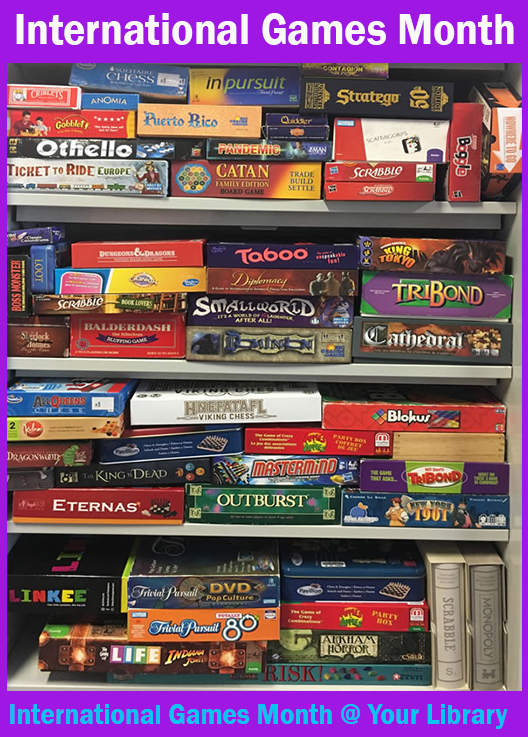
We have board games. We have board games, party games, table games, card games, dice games, role playing games, cooperative games, one player games, classic games, social games, strategy games, award winning games, word games, family games, trivia games, negotiation games, Euro games, guessing games, pop culture games, deduction games, chance games, storytelling games, simulation games, abstract games, tile games, bluffing games. We have games!

Come down to your School Library to check out our selection of games, and join with us as we celebrate International Games Month.

Second Semester

We aren’t even completely done with First Semester, yet here we are, already thinking about Second Semester. That’s just the way it goes in our school system.

We look forward to serving you in the Second Semester of the 2021-2022 School Year.  If you haven’t already done so, please be sure to come check out the School Library and find out what we can do to help you as a student at Lord Tweedsmuir, as a lifelong learner, and as a reader!

Books Delivered to You


Do you know that you can have school library books delivered to you in your classroom?  If you haven’t done it before, it is easy to learn how!


Source: Nick Youngson CC BY-SA 3.0

1. Search for Tweedsmuir Library or use this URL : tweedsmuirlibrary.wordpress.com

2. Click on Catalog

3. Sign in with your School District username and password

4. Use the Catalog (Destiny Classic or Destiny Discover) to search for books

5. When you find a book, click on the title or on the “Details” button

6. Click the “Hold It” button

7. Expect an email to your Surrey Schools email address when the book is ready.

8. IF you don’t use your Surrey Schools email, you will need to use your regular email to contact tweedsmuirlibrary@gmail.com

9. When the book is ready, you can pick it up at the School Library OR you can have it delivered to your morning class.

Go here for a more detailed TEXT step-by-step guide.
Go here for an even more detailed ILLUSTRATED step-by-step guide.
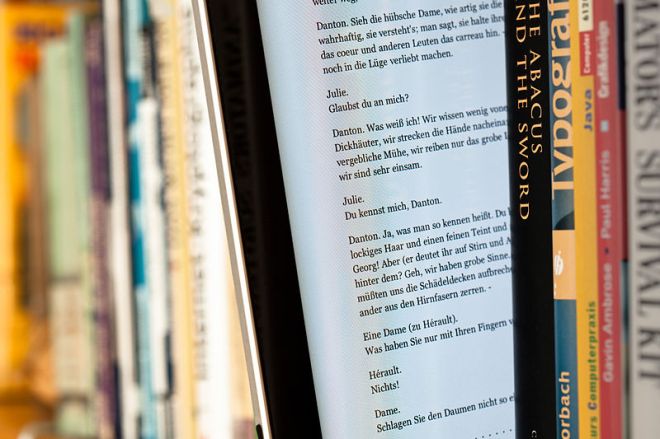
Need help finding an eBook, digital audiobook, or other online library resources?

Source: Wikimedia / CC / Maximilian Schönherr

Need help finding an eBook, digital audiobook, or other online library resources? We can help you browse, select, locate and access all sorts of online resources, including fiction and non-fiction. Read the ebook version, or listen to the digital audiobook version of novels for teens.

For help, contact Mr. Sexton, your Teacher Librarian:

Buck

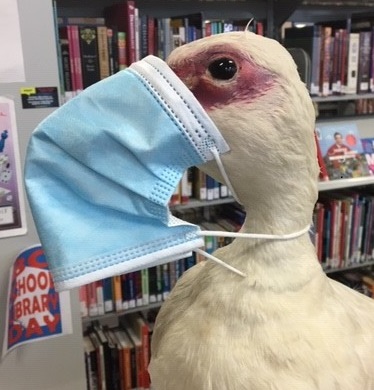
Buck the Library Duck.

Why is he called Buck the Library Duck?

Well, Buck is a Duck.

Buck lives in the Library.

He is a Duck who lives in the Library.

He is a Library Duck with the name of Buck.

So, you see, it is an appropriate moniker, Buck the Library Duck.

Controversial School Board Policy

In a controversial decision made over the March Break, the Surrey School Board voted to require that all schools must display, alongside the current portrait of our Sovereign, Queen Elizabeth II, portraits of the following:  US President Donald Trump, Russian President Vladmir Putin, North Korean Supreme Leader Kim-Jong-Un and NFL Commissioner Roger Goodell.  All Elementary and Secondary  Schools are required to be in compliance with this order by April 5, 2019.


eBooks: How to Borrow an eBook from your School Library

Source: CC BY-SA 2.0 Tina Franklin

Through the school library, the district collection, and beyond to the public library system and other libraries, you have access to a large selection of eBooks that you can read on your tablet, phone, laptop or other device.

Here are the steps you need to follow to download eBooks onto your devices:


A. Find an eBook

  1. Go to our catalog.
  2. Sign-in with your district Username and Password.
  3. Search for a book.
  4. Follett eBooks will appear in the search results with a unique material type icon.
  5. If you wish, you can restrict your search to Follett eBooks.
  6. Select a title from the results.
  7. Or if you’ve viewed the record first, select “Open.”
  8. The eBook will open for viewing in your browser.

B. Download the eBook

  1. Download the Follett BryteWave app. (App Store.)
  2. Open the BryteWave app.
  3. Sign in with your Surrey Schools account username and password. Choose our school from the drop down list.
  4. Choose your book from the “My eReader” tab.
  5. If your borrowed books do not appear, click on the sync button.
  6. Open your book and select “Download this title” when prompted.
  7. Once the download is complete, you can read the entire book on your device, even if you are offline.

(The above instructions will work for downloading to an iPad or other IOS device. You may need to follow different steps for a different device.)

For an illustrated version of these steps, and more info, go here.